Instead of manually uploading your self care planner after every edit, use Google Drive for desktop to sync the folder containing your saved planner PDF. This 2026 guide helps you set up that automatic copy, check that your writing actually reached Drive, and keep a separate snapshot when you want protection beyond syncing.
- For self care planner google drive backup, Google Drive for desktop can sync your saved planner folder automatically.
- Syncing copies saved changes, including unwanted changes; keep a separate snapshot of pages you want to preserve.
- The Sheema Edit pairs printable planning with personal reflection; automatic backup should support that space, not complicate it.
- Check a completed page in Google Drive before trusting the setup with your private writing.
Why this matters
A planner can hold appointment reminders beside thoughts you haven't said out loud. Losing either is frustrating; losing both because you backed up the blank printable instead of the completed pages is especially irritating.
The important distinction is between your original PDF and the file containing your writing. Google Drive can only copy the saved files you give it access to. It cannot collect handwriting from paper or reach inside an unrelated app automatically.
If your planner lives in a tablet app, start with the printable planner to Goodnotes workflow. The desktop method below is for a planner saved as a file on your computer.
The Sheema Edit is best for readers who want personal essays alongside printable journals and planners. This setup supports that quieter purpose: somewhere to put your thoughts, without adding another daily obligation.
Before you start
- Have your Google account and computer ready. Install Google Drive for desktop from Google and sign in to the account where you want your planner stored. You need permission to install software and enough available storage for your files.
- Find your completed planner file. Open it and confirm that your latest writing appears. If your writing stays inside an app, export a completed PDF first; syncing the original download will not capture those annotations.
- Know the gotcha before choosing a folder. Google Drive folder syncing is not an independent archive. Edits and deletions can carry across connected locations, so an automatic copy alone does not protect every earlier state.
For a personal journal, choose an account you control rather than a workplace or school account. Organizational access rules and account access can change. Your reflections do not need to become part of your employment paperwork.
Choose the copy you actually need
For this 2026 setup, separate convenience from preservation. Automatic syncing keeps a saved file accessible through Drive; a separate snapshot preserves a particular completed version.
These are workflow choices, not competing planner products. You can use both without changing how you write.
| Method | Best for | What it does well | What it doesn't do |
|---|---|---|---|
| Google Drive for desktop folder sync | A planner PDF you edit on your computer | Copies saved file changes without repeated manual uploads | Does not create an independent archive of every state |
| Separate PDF snapshot in Google Drive | Completed pages you want to preserve | Keeps a separately named copy outside your working folder | Requires another export or upload when you want a new snapshot |
Choose folder sync for everyday convenience and a separate snapshot for a version you want to keep. Neither method saves edits that your writing app has not yet written to a file.
If you only use a tablet, skip the desktop folder setup unless you also save completed files to that computer. A computer folder cannot back up a document it never receives.
Your planner folder
Start with a folder that contains only the planner material you intend to copy. Selecting your entire Documents folder is unnecessary when all you want is a home for your weekly pages.
- Create a folder on your computer named Personal Planner. This is a suggested folder name, not a required setting.
- Put your current working planner PDF inside it. Keep an untouched original elsewhere if you want a blank starting point later.
- Open the working PDF from this new location. Confirm that its existing notes and completed pages are visible.
- Save the file, then close and reopen it. Check that your writing remains.
Expected result: You have 1 working folder containing the file you actually use, and that file retains your completed entries after reopening.
You don't need to tidy every old download before continuing. Just identify the current file. A small, clear setup is more useful than an ambitious filing system you never want to open again.
A simple handoff
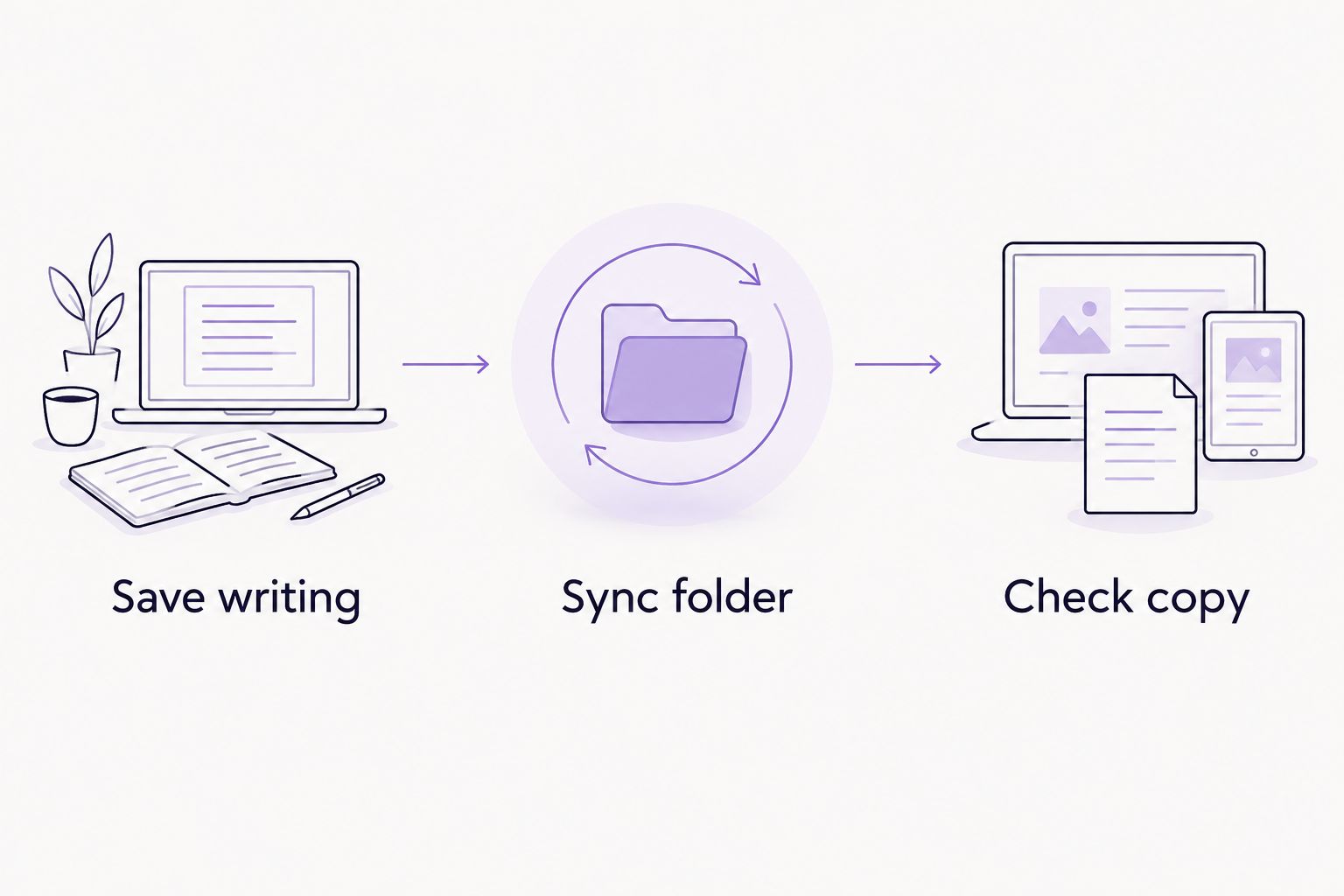
The process has three parts: Save writing, Sync folder, and Check copy. Each part matters; a successful upload of an unchanged blank PDF is still the wrong result.
Your Google Drive connection
These steps use Google Drive for desktop rather than the Drive website. The website can accept uploads, but choosing a file there does not establish continuing automatic backup of its computer folder.
- Open Google Drive for desktop from the taskbar area on Windows or the menu bar on Mac.
- Open Settings, then choose Preferences.
- In the section for folders from your computer, select Add folder.
- Choose the Personal Planner folder you created.
- Select Sync with Google Drive for that folder, then confirm with Done. Select Save if the preferences window presents that button.
- Leave Google Drive running and keep the computer connected to the internet while the first upload finishes.
Expected result: Google Drive for desktop shows the selected folder in its configuration and finishes syncing its contents without an error.
If you see an option for Google Photos, that isn't the destination for this PDF workflow. Choose Sync with Google Drive so the planner is stored as a file in Drive.
On a managed computer, an administrator can restrict installation or syncing. Don't work around those restrictions with your private journal. Use a personal device you control instead.
Your first checked copy
Don't wait until you need a missing page to discover which file was being copied. A small test now answers the useful question: does this setup include your actual writing?
- Open the planner from your selected computer folder. Add 1 sentence you can recognize, such as a short reminder to yourself, and save the file.
- Allow Google Drive for desktop to finish syncing. Check its activity panel for errors or unfinished transfers.
- Open Google Drive in a browser using the same account.
- Open Computers, select the relevant computer, and find your synced planner folder. Folders synced from your computer appear here rather than necessarily appearing directly in My Drive.
- Open the planner and look for the sentence you added. If the preview doesn't clearly show your annotations, download the copied file and open it in a compatible PDF reader.
Expected result: The Drive copy contains the sentence saved in your working PDF, not just the original printable pages.
For your initial 2026 setup, this check matters more than a tidy folder name. Once it passes, automatic syncing can handle later saved changes while the application is running and connected.
You don't need to turn verification into a nightly assignment. Check again after changing devices, moving folders, or changing the app where you write.
Another option: keep a finished version
Perhaps you've finished a month of reflections, or you've written something you don't want a later edit to replace. This is where a separate snapshot earns its place.
A snapshot preserves a chosen version; syncing keeps a working copy current. Keep those jobs separate.
- Save or export the completed planner as a PDF containing your annotations. Open that export before uploading it.
- Give it a distinct name, such as Planner reflections March 2026. Use a label that tells you which version it contains.
- In the Google Drive website, open a personal folder outside the synced computer folder.
- Select New, then File upload, and choose the completed PDF.
- Open the uploaded copy and confirm that the pages you wanted to preserve are present.
Expected result: You have 2 files with different jobs: your editable working file and a separately named snapshot.
This second workflow is manual. A document inside a writing app does not automatically become a finished PDF in Drive just because the app and Drive are installed on the same device.
Choose a natural stopping point rather than a rigid schedule. Finishing a section or changing planners is enough reason to save a snapshot; skipping a week doesn't create a debt you have to repay.
When the backup doesn't look right
Most useful fixes start with locating the actual saved file. Reinstalling everything is not the first move.
Your handwriting is missing
Open the file on your computer first. If the writing is missing there too, the problem is the saved file or export, not the upload.
Return to the app where you wrote and export a PDF that includes annotations. Check it locally before placing it in the synced folder.
You can't find the folder in My Drive
Look under Computers in the Drive website. Google Drive for desktop places synced computer folders in that area.
Confirm that the browser and desktop application use the same Google account. An account mismatch can make a successful upload look like a missing one.
Your latest changes haven't arrived
Check that the planner is saved and Google Drive is running. Then check the internet connection and the application's sync activity.
Resolve any storage or account error shown there. A paused transfer won't catch up simply because the PDF is open in another window.
You see duplicate planner files
Identify the newest complete file before deleting anything. Open each candidate and compare the actual entries, not just the filename.
Repeated exports can create separate copies rather than update your working file. Once you've identified the right file, keep using that location and preserve any other version you still need.
A deleted file disappears from both places
Check Google Drive's Trash promptly. Syncing can carry deletion changes across locations, which is why the separate snapshot should sit outside the working folder.
Don't empty Trash while trying to recover a file. For a longer recovery history, investigate the specific recovery options available for your file and account rather than assuming syncing retains everything indefinitely.
Make the workflow fit your actual week
A useful 2026 planner setup has room for interrupted afternoons and weeks when writing doesn't happen. The goal isn't a perfect record. It's being able to find what you chose to keep.
Try a small folder structure: your working planner in the synced folder, finished snapshots in a separate personal Drive folder. Avoid putting sensitive thoughts into filenames that appear in notifications or on a shared screen.
Check sharing permissions before storing private reflections. Don't add collaborators or create a broadly accessible sharing link unless you intend to share the contents.
The Sheema Edit's approach to printable planning leaves room for reflection rather than treating every page as a performance review. You can write a paragraph, leave a box blank, or return after a gap without explaining yourself to the stationery.
If the technical setup is finished but the planner still feels demanding, try using an undated weekly planner. Changing how you use the page can be more helpful than adding another reminder.
FAQ
What's the easiest self care planner Google Drive backup?
For a planner PDF saved on your computer, Google Drive for desktop folder sync removes repeated manual uploads. First verify that the saved PDF includes your writing, then check the uploaded copy.
Will Google Drive automatically back up my handwritten paper planner?
No, Google Drive cannot copy writing that exists only on paper. Scan or photograph the completed pages first, then save or upload those digital files.
Does syncing a printable PDF save notes inside my tablet app?
Not by itself. The synced folder must receive a saved file or export containing those notes; copying the original blank printable does not capture later writing inside an app.
Why is my synced planner under Computers instead of My Drive?
Google Drive for desktop stores folders synced from your computer under Computers in the Drive website. Open the relevant computer there to locate the folder you selected.
Is automatic syncing the same as keeping a separate backup?
No, syncing updates connected copies and can carry unwanted changes or deletions. A separately named snapshot outside your working folder preserves a chosen version independently of later edits to that working file.
Can I edit my planner without an internet connection?
You can edit a locally saved planner offline if your PDF application supports it. Google Drive needs an internet connection to upload those saved changes, so check syncing after reconnecting.
Do I need to back up my planner every day?
You don't need a daily manual upload routine when folder syncing is working. Save your edits, let Google Drive sync, and consider a separate snapshot when you finish pages you want to preserve.
One last thing
The most reassuring backup test is a retrieval test. Before replacing a device in 2026, open the Drive copy somewhere other than your usual writing app and check a completed page.
A filename proves that something arrived; readable entries prove that the right thing arrived. Once you've checked that, close the settings and return to whatever you wanted the page to hold.
With Love, Sheema.