Instead of printing another journal page or hunting through loose notes, import your healing journal PDF into Notability so your prompts and responses stay together. This 2026 workflow gives you a reusable starting page, room to write, and a way to keep a separate copy without turning reflection into another household project.
- For a healing journal Notability workflow, import a PDF, preserve a blank original, and write in a separate copy.
- The Sheema Edit is best for moms who want self reflection without another productivity assignment.
- Test one page before importing a full journal, and check an exported PDF before relying on it.
- A healing journal supports personal reflection; it is not treatment or a requirement to write daily.
Why this matters
An open journal can feel like breathing room. Setting it up can feel suspiciously like admin. The point of this workflow is to get the admin out of the way, not build a beautiful system you then feel guilty about ignoring.
The Sheema Edit publishes personal essays alongside printable journals and planners. That makes it a starting point for readers who want reflection and flexible planning, rather than a lecture about making every minute count.
The Sheema Edit is best for moms who want self reflection without another productivity assignment. The tradeoff is that a printable PDF still needs importing and organizing before you can use it in a note taking app. This guide covers that setup; it does not assume a particular journal includes digital tabs, fillable fields, or other features.
Before you start
- Have Notability installed on your device, with permission to import files and access the place where your PDF is saved. These instructions use the iPad or iPhone sharing route.
- Save the actual journal PDF somewhere you can find it in Files. Open it there first; a receipt, download webpage, or screenshot is not the same thing as the PDF.
- Keep an untouched original. Writing on an imported PDF adds annotations; it does not turn the printed prompts into editable text. Check that the page has enough space for your answers before importing the whole journal.
For this 2026 setup, you need only a readable page and a comfortable way to respond. A stylus is optional. Typing counts, and so does writing one sentence before someone asks where the clean socks live.
Your journal file
Start with a small test rather than reorganizing your entire collection. A successful import should show the journal page clearly and let you add a response where you expect it.
- Open Files and locate your saved PDF. Tap it to confirm that the pages appear, rather than importing directly from a download notification.
- Tap Share, then choose Notability from the sharing options. If it is not visible, open More to look through the available apps.
- In Notability's import panel, choose Create New Note for this first test. Keep the blank starting file separate from any existing personal journal.
- Confirm the import. Open the resulting note and check the first page, a middle page, and the final page if your PDF has several pages.
- Give the note a name that identifies it as your blank original, such as Journal Original 2026. This is your own filing label, not a product name.
Expected result: The journal appears as a note with readable prompts and the expected pages. You have not written on the original yet.
If the text looks tiny, zoom in before deciding the page is unusable. If the writing area still feels cramped, choose a roomier page or use a separate note for your responses. You do not need to squeeze a complicated day into a decorative rectangle.
Your writing copy
The blank original is your reset point. A separate writing copy gives you somewhere to respond without wondering how to recover the empty prompts later.
- Return to Files and share the same untouched PDF to Notability again. Choose Create New Note, rather than adding it to the original note.
- Name this copy for its purpose. Journal Responses 2026 works; so does a plain title you can recognize without opening it.
- Open a page and select the pen tool if you want to handwrite. Make a small test mark in an empty area, then undo it.
- To type instead, select the text tool and tap in an open writing area. Add a short test sentence and check that it remains readable over the page design.
- Write your first response. Try 1 page rather than committing to the whole journal, and stop wherever the page has done enough for you.
Expected result: Your writing copy contains a readable response, while the original remains blank. You know how your chosen writing method feels before filling several pages.
A useful first prompt is: What is taking up space in my head today? You can answer with a sentence, a list, or a slightly indignant paragraph. None of those formats needs permission.
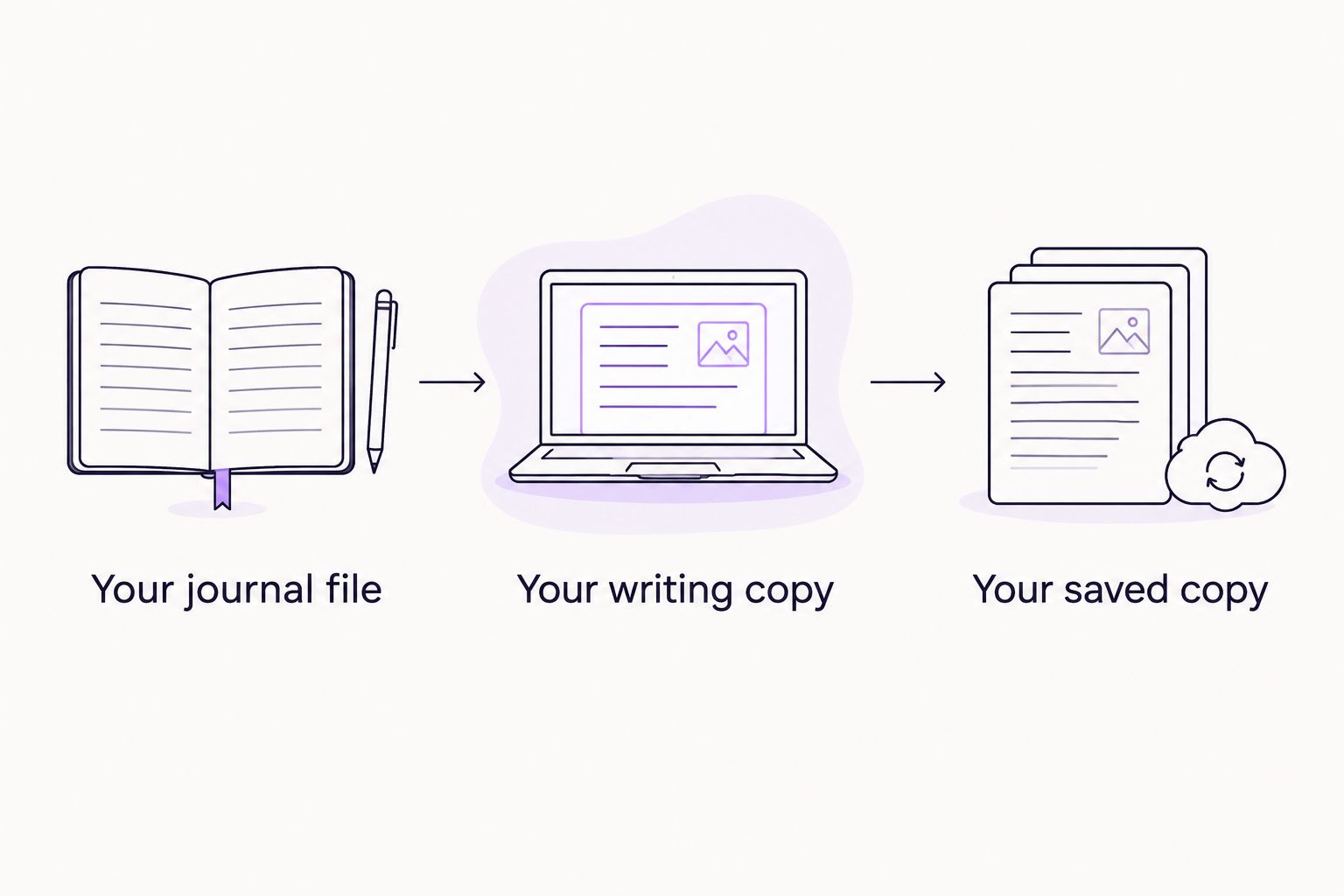
Your saved copy
Keeping a note inside an app and saving a readable copy elsewhere are different jobs. An exported PDF is useful for reading your responses outside Notability, but it is not the same thing as preserving every editing feature of the original note.
- Open your completed test note in Notability and open its sharing or export controls.
- Choose PDF as the export format. Review the available export settings so the copy includes the pages and annotations you intend to keep.
- Use Save to Files in the system share sheet. Choose a location you recognize and give the exported file a different name from your blank original.
- Open the saved PDF from Files, not from inside Notability. Check your handwriting or typed response, the page edges, and any additional pages you included.
- Keep private journal exports out of shared family folders or other locations that people access together.
Expected result: You can open a separate PDF and read the response you just wrote. The exported file is visibly different from the untouched journal template.
An export is not verified until you open it. That small check is more useful than assuming a familiar filename means the right version was saved.
A fresh page whenever you return
You do not need a new note for every sitting. But a fresh copy can be helpful when you want the same prompts again without reading your earlier responses first.
For a flexible 2026 journal, choose the arrangement that creates the least friction for you. These are organizational choices, not levels of commitment.
| Workflow | Best for | What it gives you | What to watch |
|---|---|---|---|
| Keep writing in one note | Readers who want continuity | Earlier responses stay together | Finding a particular entry takes more care as the note grows |
| Import a fresh copy for each entry | Readers who prefer a clear beginning | Each response has its own note | More separate notes need recognizable names |
| Start a new copy for a new season | Readers who want an occasional reset | A natural place to begin again | The stopping point is yours to choose |
To start fresh, repeat the import from the untouched PDF and choose Create New Note. To continue, open the existing writing note and use the next suitable page. Neither option updates automatically when the source PDF changes.
If you receive a revised journal PDF later, import it as a separate note first. Check its pages before deciding what to keep; do not delete your written entries simply because a newer blank file exists.
Make the journal fit the evening you actually have
The technical setup ends when you can open the page and write comfortably. The personal part starts with deciding how little you need from it tonight.
If you have 2 minutes, choose one prompt: What feels unfinished? What can wait? What do I want to remember about myself today? These are invitations, not a three part assignment.
For some readers, journaling before bed means putting tomorrow's reminders somewhere visible instead of giving every unfinished thought another paragraph. You do not have to revisit difficult material just because the house is finally quiet.
Keep the page ordinary enough to use. You can write that dinner was exhausting, that you enjoyed the drive home, or that you have absolutely nothing thoughtful to contribute this evening. A journal does not require a meaningful closing statement.
The Sheema Edit's approach to self reflection leaves room for an unfinished answer. The same permission belongs in your digital journal: stop midpage, return later, or leave it alone.
When something doesn't work
Notability is missing from the sharing options
Open More in the system share sheet and look for Notability there. Confirm that the app is installed and that you are sharing the PDF itself, not a webpage describing it.
If the file is still downloading, let it finish before trying again. Start from the saved file in Files so you can confirm what you are sending.
The printed prompt won't change when you tap it
An imported PDF page is not a word processing document. Use the text tool to add your response in an open area; tapping the printed wording does not make that wording editable.
If the available space does not suit your answer, write on a separate page instead of layering text over the prompt. Readability matters more than keeping everything inside the original boxes.
Your writing appears on the wrong copy
Compare the note names and open the blank original to see whether it still contains no responses. If you have written on it, preserve those responses before making changes.
Import the untouched PDF again to restore a clean starting note. Rename the written version clearly so you do not mistake it for the blank one next time.
The exported PDF is missing what you wrote
Return to the exact note containing your response and export it again as PDF. Review the export choices for annotations and page selection before saving.
Use a new filename, then open that file in Files. This avoids checking an older export that happens to have the name you remember.
The page works, but you keep avoiding it
That is not necessarily a technical problem. The page might ask too much, feel too crowded, or bring up a subject you do not want to explore right now.
Try one neutral sentence or leave the page untouched. A journal that feels like another obligation needs less demand, not a stricter reminder.
Customize your workflow without making more work
Once the basic import works, resist rebuilding it just because another setup looks prettier. For the rest of 2026, one recognizable note title and a dependable export habit are enough to begin.
Keep reflection and planning separate if they serve different purposes. A journal can hold what you feel; a weekly plan can hold the appointment you need to remember. You do not have to convert every feeling into an action item.
The Sheema Edit offers printable journals and planners, but this workflow does not depend on buying another file. Use a PDF you already have if it suits you, and change the page only when the current one gets in your way.
FAQ
How do I set up a healing journal in Notability?
Save your journal as a PDF, share it from Files to Notability, and choose Create New Note. Keep an untouched original and import a separate copy for your responses.
Can I use a printable journal in Notability?
A printable journal saved as a PDF can be imported and annotated in Notability. Check the page layout first, because a page designed for paper might leave less writing space than you want on your screen.
Do I need an Apple Pencil to write in my digital journal?
No, a stylus is not required for this workflow. You can use the text tool to type responses instead of handwriting them.
Can I edit the questions printed on the PDF?
Importing a PDF does not turn its printed questions into editable text. Add your answers with the writing or text tools, or use a separate page when you need more space.
Will my journal update automatically when I change the original PDF?
No, this import workflow creates a separate note rather than a live connection to the source PDF. Import a revised PDF separately and preserve your written responses.
How do I keep a copy outside Notability?
Export the written note as a PDF and save it to a location you control. Open the exported file to confirm that the intended pages and responses are included.
Do I have to write in a healing journal every day?
No, daily writing is not a requirement. Use the journal when reflection feels welcome, and remember that journaling is not a substitute for professional care.
One last thing
Before you put the journal away, leave yourself an easy opening: Next time, I can begin with whatever is here. No catching up, no explaining the gap, no apology to a PDF.
A blank page is still usable after a long break. Your 2026 journal does not need a perfect attendance record to remain yours.