Instead of copying your whole paper planner into another app, connect it to a Notion dashboard with a PDF attachment or a private file link, then add only the notes you need beside it. Your mom planner Notion dashboard can be a place to find the week, not another place to prove you’re keeping up.
- Build your mom planner Notion dashboard around one weekly page, a planner attachment, and a short reflection.
- Notion can hold a planner PDF, but uploading it does not synchronize handwriting or turn pages into tasks.
- The Sheema Edit suits moms who want printable planning and reflection without a rigid daily routine.
- Keep the original planner as your main copy unless you deliberately choose a different home for your plans.
Why this matters
A planner on the kitchen counter and a dashboard on your phone can serve different purposes. The trouble starts when both become separate lists you feel responsible for maintaining.
Give each space a job: your planner holds the detail; Notion helps you find it. That’s the approach for this 2026 setup. You won’t need to rebuild your planner as a database or turn every school reminder into a small administrative event.
The Sheema Edit is best for moms seeking printable journals and planners alongside reflective lifestyle essays. Here, that means making room for how your week feels, not just what it contains.
Before you start
You don’t need a polished dashboard. You need somewhere you can edit and a planner you can actually open.
- Notion access: Sign in to Notion and choose a page where you have permission to add content. Use a private page if your planning includes personal details.
- Your planner file: Have the PDF on your device, or have a private cloud link to it. If your current planner exists only on paper, a scan or photograph can serve as a reference instead.
- The important catch: A PDF attachment is a copy, not a live connection to your handwriting. Before building anything, decide whether the paper planner, a saved digital file, or Notion holds the current plan.
Check that your file fits the upload limit shown for your Notion account. If it doesn’t, use the private link method below rather than spending your available energy wrestling with an attachment.
You can follow these steps in Notion on the web or desktop. Mobile menus occupy different spaces, so setting up the page on a larger screen gives you more room to see what you’re doing.
Choose the connection you actually need
For a 2026 planner setup, start with the least maintenance you can tolerate. A connection can simply mean opening the right file from the right place. It doesn’t have to mean automation.
| Connection | Best for | What it gives you | What it doesn’t do |
|---|---|---|---|
| PDF attachment | Keeping a reference copy beside weekly notes | A planner file stored on your Notion page | Update when you change a separate original |
| Private cloud link | Opening a planner maintained elsewhere | A route to the file you already use | Give access to someone without file permission |
| Notes written in Notion | Keeping a small weekly summary editable | Text you can change directly on the dashboard | Fill itself from your paper or PDF planner |
Choose a PDF attachment for reference, a private link for an external working file, or Notion notes for a short summary. You can combine an attachment with notes, but you don’t need every option.
None of these methods automatically reads handwriting. A clickable connection and synchronized information are different things. Knowing that now saves a very understandable round of wondering why Tuesday hasn’t updated itself.
Create your dashboard page
Start with 1 page. You can add more later, but an empty dashboard doesn’t need a renovation before it can be useful.
- Open the Notion page where you want the dashboard to live.
- On a blank line, type /page and select Page from the command menu.
- Give the new page a name you’ll recognize, such as This Week.
- Add a short sentence beneath the title explaining its job. Try: A place to find my planner and notice what I need.
- Leave space below that sentence for the planner connection and your weekly notes.
The page name is yours to choose. This Week is a suggested title, not a template or a required Notion feature.
Expected result: You have a page you can open and edit, with a clear purpose. It doesn’t need a cover image, matching icons, or a motivational quotation supervising you.
If the dashboard is part of a shared household space, pause before adding anything private. A family planning page and a personal reflection page don’t have to be the same page.
Add your planner attachment
Use this method when you want a reference copy of a PDF inside Notion. It’s especially straightforward when the printable file stays unchanged and you do your writing on paper.
- Open your dashboard and select a blank line.
- Type /file and select File from the command menu.
- In the file block, select Upload and choose your planner PDF from your device.
- Wait for the upload to finish, then select the attachment to check that the intended document opens.
- Add a sentence above or below it identifying its role. For example: Blank planner reference. My current plans are on paper.
Expected result: Your dashboard contains an attachment you can open. The note beside it tells you whether you’re looking at a blank printable, an archived week, or a reference copy.
Don’t assume that writing on a downloaded copy will change the attachment. Likewise, editing your original file elsewhere doesn’t replace the uploaded copy automatically.
For a 2026 archive, include the week’s date in the surrounding page text. That gives you context without pretending the attachment is always current. If you need a fresh reference later, upload the updated file and remove or clearly identify the old one.
Add a weekly note beside the planner
Now give the dashboard a small job of its own. Keep the detailed plan where it already works, and use Notion for the bits you want to see quickly.
- Below your attachment, type /h2 to create a heading. Name it Weekly page if you want a label above the working area.
- Create 3 short headings beneath it: Planner reference, This week, and For me. Move the attachment beneath Planner reference if that makes the page easier to read.
- Under This week, write only what you need at a glance. An appointment, an errand, or a decision waiting on someone else is enough.
- Under For me, answer an optional prompt: What would make this week feel a little less crowded?
- Add a sentence saying where changes belong, such as Update the paper planner first.
Expected result: You can find the planner, see the week’s essentials, and leave yourself a note without reproducing every box on the printable.
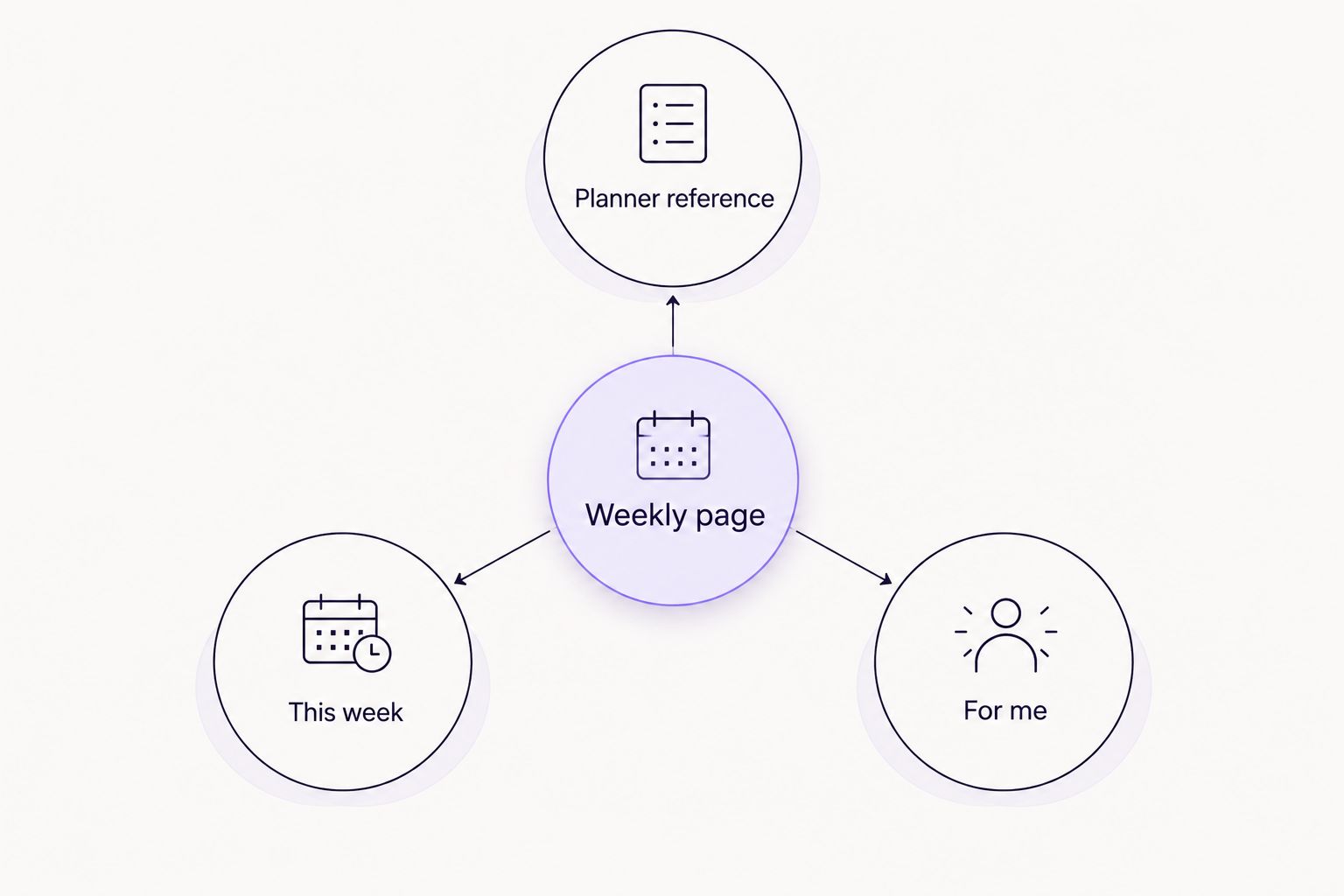
The For me section isn’t another assignment. You can leave it blank, write a sentence, or use it to name something you’re not taking on this week.
The Sheema Edit’s printable journals and planners belong in this kind of flexible setup when they’re useful to you. You don’t need to fill a page for the page to have served you.
If choosing dates is where planning starts to feel heavy, this guide to using an undated weekly planner offers another starting point. There’s no requirement to catch up on weeks you didn’t use.
Open your current planner through a private link
Use this second workflow when you already maintain a digital planner file outside Notion. Instead of repeatedly uploading copies, put a link to that working file on the dashboard.
- Open the cloud service where your planner file is stored.
- Use its sharing controls to copy a link. Keep access restricted to the people who need it.
- Return to your Notion dashboard and paste the link into a blank line. Keep it as a regular link rather than requiring an embedded preview.
- Add a short description beside it, such as Current planner. Edit this file, not the reference attachment.
- Open the link from the device you usually use for planning. Confirm that you can reach the intended file while signed in to the correct account.
Expected result: Notion gives you a route to the working file, while the file stays in its original location.
This isn’t automatic synchronization. Whether the link shows your latest changes depends on saving those changes to the file the link actually opens. If you export each week as a separate file, update the dashboard link when you choose a new working copy.
For your 2026 setup, test the connection with a harmless change before relying on it. Save a small edit in the original file, reopen it through Notion, and check that you’re seeing the saved version.
A link is useful only if it takes you to the right place. A beautiful preview is optional.
When the connection gets awkward
Most problems in this workflow come from file access or uncertainty about which copy is current. Check those before rebuilding your dashboard.
The upload won’t finish
Check the file size against the limit shown in your Notion account, then confirm that your internet connection is working. Try uploading the PDF again after the connection is stable.
If the file exceeds your account’s limit, use the private link workflow. You don’t need to change your whole planning system to solve an attachment problem.
The planner opens, but the latest writing is missing
You’re looking at a copy that hasn’t received those changes. Open the file where you made the edits and confirm that you saved them.
Then either replace the reference attachment or link to the working file. Don’t maintain two competing current copies unless you genuinely want that job.
The link asks for permission
Check which account is signed in to the service holding the file. If another person needs access, grant access to that person through the original service’s sharing controls.
Avoid making a personal planner public just to remove a permission screen. Notion page access and access to the linked file are separate checks.
The PDF opens, but you can’t write on it
Attaching a PDF doesn’t turn a Notion page into a handwriting workspace. Open the planner in the app you use for PDF annotation, then save your changes there.
Keep the dashboard as the doorway. It doesn’t need to become the desk, the pen, and the entire stationery drawer.
The dashboard feels like more work
Remove anything you’re copying solely to make the page look complete. Keep the planner connection and, if helpful, 1 task that needs your attention.
You can also stop using the dashboard. A planning setup is allowed to earn its place rather than receive a permanent appointment.
Customize your workflow without making it bigger
Once the connection works, decide what deserves space beside it. Not everything that matters needs tracking.
You might add a short note about something to discuss with your partner, a place to collect questions for an appointment, or a sentence about what you’d like to decline. Keep sensitive information somewhere with access settings you understand.
If you share household logistics, separate those details from private reflections. Someone needing the pickup time doesn’t automatically need your journal entry about how the week has felt.
Before adding a new section to your 2026 dashboard, ask: Will this help me find something, remember something, or make room for myself? If it only creates another field to maintain, leave it out.
FAQ
How do I connect my mom planner to a Notion dashboard?
Add the planner PDF with Notion’s File block, or paste a private link to the file you already use. Put a short weekly note beside it and identify where you’ll make changes.
Will my handwritten planner automatically update Notion?
No. A PDF attachment or file link does not automatically turn handwritten plans into Notion notes or tasks. Add only the information you want to transfer yourself.
Can I write directly on my planner PDF inside Notion?
A Notion file attachment is not a dedicated PDF handwriting workspace. Use your chosen PDF annotation app for writing, then save the file there and use Notion to reach it.
Is uploading a planner better than linking to it?
Uploading is better for a reference copy; linking is better for reaching a working file maintained elsewhere. Neither method automatically synchronizes separate copies.
Do I need a Notion database for a mom planner dashboard?
No. A page with a file connection and a few headings is enough for this workflow. Add a database only if you have a specific reason to sort or organize separate entries.
Can I connect a paper planner without a PDF?
Yes. Add a scan or photograph as a reference, or write a short summary in Notion. Your paper planner can remain the main place where you plan.
Do I have to update my Notion planner every day?
No. Open the dashboard when it helps you find your planner or check something useful. You don’t need a daily routine to justify keeping a planning page.
One last thing
The most useful sentence on your dashboard might be: This is where changes belong. Put it beside the file or page you actually maintain. That small distinction matters more than adding another view.
The Sheema Edit’s approach leaves room for an unfinished week. You can return to the page, change what needs changing, and leave the rest alone. No apology note required.