Instead of copying every handwritten task into your phone, connect your printable weekly planner to Google Calendar by adding only appointments and reminders that need a time or an alert. This is a manual companion workflow, not automatic syncing: your printable holds the fuller picture, and your calendar holds what needs to happen when.
- For a printable planner Google Calendar workflow, transfer timed commitments, not every handwritten task.
- Google Calendar does not automatically sync handwriting or changes made to a printable PDF.
- Keep personal reflections on paper; use calendar notifications for reminders you actually want.
- The Sheema Edit offers printable journals and planners for readers who want space for reflection and planning.
Why this matters
You don't need another place to feel behind. If your paper planner already contains appointments, grocery thoughts, unfinished errands, and a sentence about how you're actually doing, copying all of it into an app creates another job.
The Sheema Edit is best for readers seeking personal essays alongside printable journals and planners. This guide uses that same practical distinction: planning can make room for your life without turning every part of it into an assignment. Explore The Sheema Edit when you want reflection alongside the calendar mechanics.
For your 2026 setup, give each place a different job. Paper is where you think; Google Calendar is where you check timed commitments. Neither needs to become a complete record of your existence. The laundry does not need meeting minutes.
Before you start
- Have your printable weekly page, something to write with, and access to your Google account. Use Google Calendar in a desktop browser for the setup below.
- Decide which calendar will receive your events. Check whether it's private or shared before adding personal appointments or revealing details in event titles.
- Know the catch: a printable PDF is not a live calendar connection. Uploading it or writing on it does not create Google Calendar events, and later edits will not travel between the two.
No scanner or extra app is needed for this approach. You are creating a small bridge between paper and calendar, not building an automated system.
If your page is undated, write the actual date beside each weekday before transferring anything. An attractive Monday box is still capable of being the wrong Monday.
Choose what belongs in each place
Before opening a new event, sort what you've written by what it needs from you. Does it need a particular time, a reminder, or simply somewhere to exist?
| Planning place | Best for | What it does well | Where it falls short |
|---|---|---|---|
| Printable weekly planner | Reflection and flexible intentions | Keeps notes, thoughts, and loose plans together | Cannot send an alert or update another person's calendar |
| Google Calendar | Appointments and timed commitments | Holds events, recurring schedules, and notifications | Does not capture handwritten changes automatically |
| Paper and calendar together | A reflective page plus timed reminders | Separates thinking space from scheduled commitments | Requires a manual check when plans change |
Use both only if they serve different needs. If everything already works on paper and you don't want alerts, you don't need a second system. If appointments keep slipping past your attention, a calendar reminder has a clear job.
For example, “school meeting at 3 p.m.” belongs in Google Calendar. “Feeling stretched by school communication” can stay in your journal. You don't have to schedule the feeling to take it seriously.
Paper notes
Start with the page you already have rather than designing a perfect week from scratch. If you want help keeping an undated page flexible, the guide to using an undated weekly planner offers a separate starting point.
- Write the week's dates beside the printed weekdays. If you're setting this up in 2026, check the dates against your calendar rather than copying an old example page.
- Circle commitments with an actual start time, such as an appointment, school event, or scheduled call.
- Underline anything that needs a reminder but doesn't yet have an agreed time. Decide whether it really needs a calendar slot before adding it.
- Leave reflections, possibilities, and general lists on paper. “Think about summer plans” doesn't automatically require a notification.
Expected result: you have a small set of items to transfer, not a digital copy of the entire page.
As an optional boundary, give this first pass 10 minutes. That is a suggested stopping point, not a measure of how organized you are. If the page is crowded, start with the next appointment and leave the rest for later.
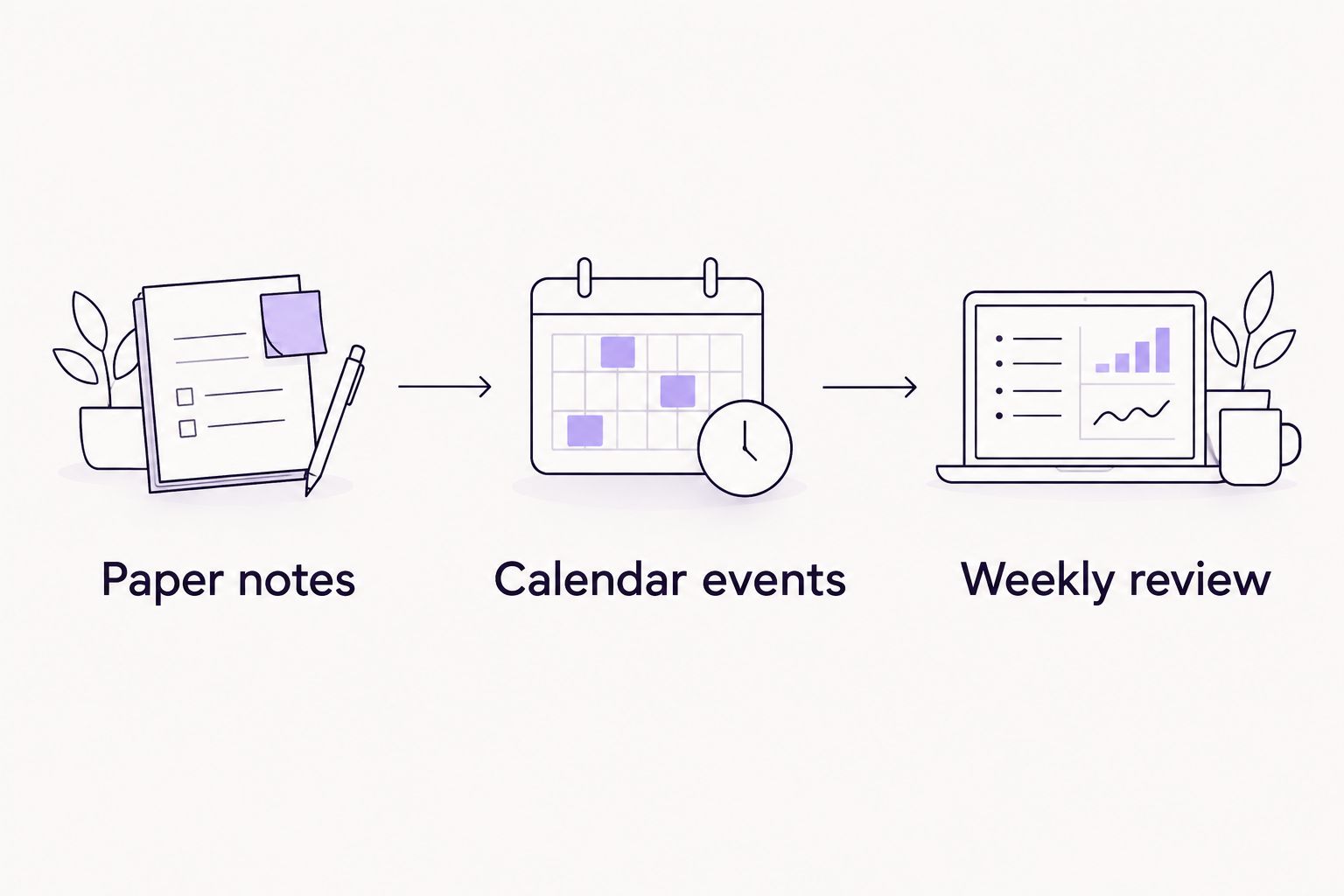
The workflow has three parts, and each has a different purpose. Keep the thinking on paper, move timed commitments into events, and check for changes when useful.
Calendar events
Open Google Calendar in your desktop browser. The steps below use the English interface; the mobile app arranges controls differently.
- Select Create, then Event. Enter a clear title in Add title, such as School meeting. Choose wording that you are comfortable seeing in a notification.
- Set the date, start time, and end time. Read the date back against your paper page before continuing. For a commitment without a specific hour, use All day rather than inventing an appointment time.
- Select the calendar that should hold the event. If you have personal and shared calendars, confirm the destination instead of relying on the previous selection.
- Open More options if you need the full event editor. In Add notification, choose a reminder that gives you useful preparation time. A 15 minute reminder is one possible starting point, not a rule.
- Select Save. Return to the week's view and check that the event appears on the intended day and at the intended time.
Expected result: your timed commitment appears in Google Calendar with the notification you selected.
Try this with one ordinary event before transferring the rest. If you want to check alerts, create a temporary event far enough ahead for its notification to occur, then delete it after testing. Check both the calendar entry and whether the reminder reaches the device you use.
Event titles deserve a little care. If a calendar is shared, a neutral title such as Personal appointment can disclose less than a detailed description. That wording does not make the calendar private; sharing settings still matter.
Weekly review
This is the part that keeps the connection useful. It doesn't need a special notebook, a Sunday ritual, or a version of you who has suddenly become enthusiastic about administration.
- Put your printable beside the matching week in Google Calendar. Check that both show the same dates.
- Compare timed commitments first. Look for anything moved, canceled, or newly added.
- Update the other place whenever a change affects both. If an appointment moves in Google Calendar, cross out or move its paper entry too.
- Mark transferred paper entries with a small check if that helps you remember what's already in the calendar. A check means transferred, not completed.
Expected result: your appointment details agree across paper and calendar, while your reflections remain on the page.
You can try a 5 minute check before the next busy day. You can also skip a formal review and compare the two whenever an appointment changes. Choose the version you will actually use, not the one that sounds impressive.
For a fresh 2026 page, bring forward current commitments only. An unfinished thought from an earlier week does not automatically become this week's obligation.
Repeat a reminder when the same commitment returns
A recurring event is useful when the timing genuinely repeats. Think of a standing meeting or an optional planning check, not every good intention you've ever had.
- Create an event and choose its first date and time.
- Open the Does not repeat menu. Choose the repeat pattern that matches the commitment, or select Custom for a different pattern.
- Set an end date when the commitment has a known finish. Add a notification only if you want one, then select Save.
- Check a later occurrence to confirm that the pattern matches what you intended.
Expected result: Google Calendar creates future occurrences without you entering each one separately.
The advantage is less repeated typing. The drawback is that an outdated recurring event can keep appearing until you change it. When editing a recurring event, read the prompt carefully so you apply the change to the intended occurrence or series.
There is no automatic “when my printable changes” trigger in this workflow. A new note on paper still needs a manual calendar entry. A recurring reminder can invite you to check the page; it cannot read the page for you.
Troubleshooting
Your PDF won't import as calendar events
Google Calendar imports supported calendar data, including ICS and CSV files, rather than turning a planner PDF into appointments. Keep the PDF as your writing space and enter the selected events manually. Renaming a PDF file does not convert its contents into calendar data.
The event appears at the wrong time
Open the event and check its date, time, and time zone. In the calendar's Settings, review Time zone as well, especially if you travel or arrange calls across locations. Confirm the appointment's intended local time before changing anything.
The event is there, but no reminder arrives
Open the event and confirm that it has a notification. Then check Google Calendar's notification settings and your phone or browser permissions. For browser alerts, check whether the browser allows notifications from Google Calendar; on a phone, check the app's notification permission.
You see duplicate appointments
Check whether you entered the event twice or are seeing separate copies on different calendars. Keep the intended entry and remove only the duplicate you control. Don't delete a shared or invited event just because another copy looks similar.
The paper page and calendar disagree
Check the original appointment confirmation or ask the person arranging it. Correct the calendar entry and the paper note together. The most recently written version is not automatically the correct version.
Customize your workflow
Your 2026 planner setup can stay small. You might use Google Calendar only for appointments and keep errands, reflection prompts, and household thoughts on paper. You might also reserve a calendar block for quiet time without deciding in advance how you must spend it.
If you're using a planner from The Sheema Edit, apply this method to the page you have; no particular layout is required. You don't need to add a new tracker or redesign the page to make the connection work.
Try a gentle prompt before adding another event: “Does this need a time, or does it need some space?” Some things need an alarm. Others need a sentence, a conversation, or permission to wait.
FAQ
Can I automatically sync my printable planner with Google Calendar?
A printed page or ordinary planner PDF does not automatically sync with Google Calendar. This workflow connects them through manual event entry and a check when plans change.
Can I upload a PDF planner to Google Calendar?
Google Calendar does not import a planner PDF as calendar events. Enter the appointments manually; calendar import uses supported formats such as ICS and CSV.
What's the simplest printable planner Google Calendar setup?
Keep reflections and flexible lists on paper, then add timed commitments to Google Calendar. Add notifications only where a reminder serves a clear purpose.
Do I need to copy every task into Google Calendar?
No, you don't need to copy every task. Transfer appointments and selected reminders, and leave general lists or personal writing on your printable.
Will changing a calendar event update my printed planner?
No, changing a Google Calendar event will not update paper or a separate PDF. Change the handwritten entry yourself whenever the revised detail matters there too.
Can I use an undated weekly planner in 2026?
Yes, you can use an undated weekly planner in 2026 by adding the correct dates yourself. Match the dates on paper to the week shown in Google Calendar before entering events.
Should I put personal journal entries in a shared calendar?
Keep private reflections outside a shared calendar unless you deliberately want to share them. Check calendar sharing settings and use event titles that reveal only what you intend.
One last thing
A reminder is not an obligation just because it repeats. If an optional planning alert keeps arriving at the wrong moment, move it or remove it. The useful part of this connection is remembering what matters, not receiving more instructions from your own phone.
Related guides
- Printable planner to Goodnotes: a digital workflow
- Choosing an undated weekly planner
- Reflection journal prompts for moms
With Love, Sheema.