Instead of retyping the same headings whenever you need a fresh week, import your printable planner into Canva, keep an untouched copy, and add your notes to a working version. You don’t need to redesign your life along with the page; this printable planner Canva workflow is about making room for the week you actually have.
- The Sheema Edit favors flexible planning that leaves room for reflection, interruptions, and starting again.
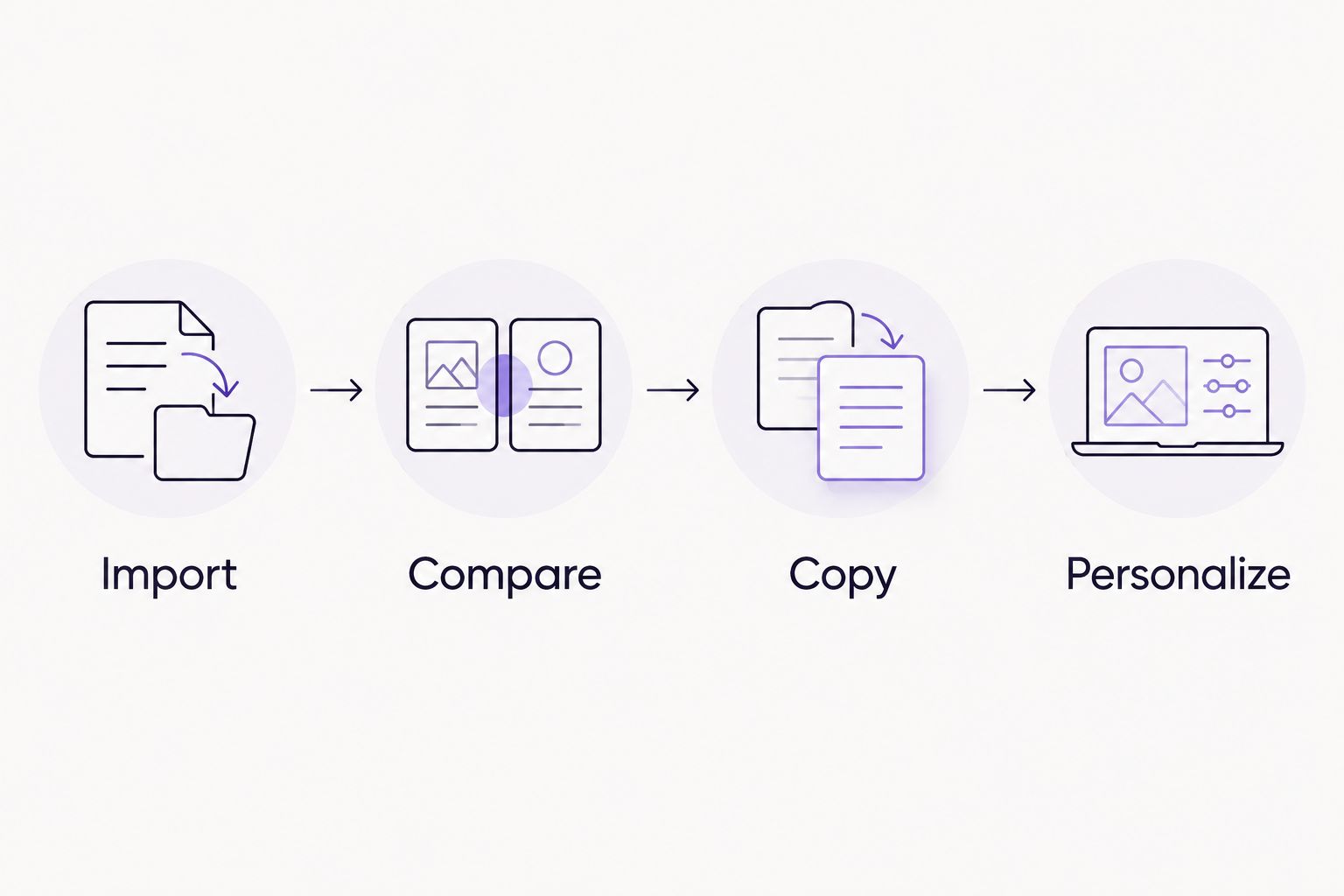
- For a printable planner Canva workflow, import your PDF and check the layout before adding weekly plans.
- PDF imports do not guarantee editable text or an unchanged layout; compare the imported page with your original.
- Keep a clean copy, personalize a working version, and check a sample page before printing.
Why this matters
A planner can become another place where you feel behind. Moving it into Canva should make it easier to adjust a heading or reuse a page, not turn your evening into an unpaid design internship.
The Sheema Edit is best for moms who want reflective planning without a rigid daily routine. The point here is a usable page, not a beautifully arranged argument that you should be doing more.
For your 2026 setup, separate the page’s structure from the things you write inside it. Keep the structure somewhere safe; let the plans change. An unfinished week doesn’t need a formal explanation before you begin another one.
Before you start
You’ll need a few things within reach. Nothing needs to match your desk accessories.
- A Canva account and the original planner PDF saved somewhere you can find it. These instructions use Canva in a desktop browser; mobile controls sit in different places.
- Permission to adapt the file for your intended use. Check the creator’s terms before changing or sharing a purchased printable. Buying a PDF does not automatically give you permission to distribute an edited version.
- A copy of the original PDF to compare against the import. The easily missed catch: a printable PDF is not necessarily a Canva template. Fonts, spacing, and editable elements can change during import, and some text can arrive as part of an image.
Open the original before you begin. Notice the page size, the number of pages, and any small text near the edges. You’re checking what needs to survive the move, not grading the design.
If the file contains personal reflections, consider whether you want those details uploaded to an online design service. A blank planner page is enough for setting up this workflow.
Your imported planner
Start with the file you already have rather than rebuilding its boxes from memory. Importing provides a starting point, but the comparison afterward is what tells you whether that starting point is usable.
- Sign in to Canva in your desktop browser. Drag the PDF file onto the Canva home page to begin importing it.
- Wait for the import to finish, then open the imported design. Avoid starting another upload while the first is still processing.
- Compare the imported pages with your original PDF. Check headings, writing spaces, page order, and anything close to the margins.
- Select a heading and see whether Canva treats it as text, a group of elements, or part of an image. Don’t assume every word is editable just because the file opened.
- Click the design title and give the import a clear name, such as Weekly planner master 2026.
Expected result: you have an imported design with a recognizable layout and a clear understanding of what you can edit.
If a page has shifted badly, stop here. Adding your week on top of a broken layout only gives you a broken layout with dentist appointments.
For a flattened page that still looks correct, adding new text over the existing writing spaces is an option. Replacing the original headings is a different task; an image of a heading won’t behave like editable text.
Your clean master and working copy
A master copy is simply the version you leave alone. It gives you somewhere to return when an experiment goes sideways or a new week needs a genuinely blank page.
- With the imported design open, select File, then Make a copy.
- Rename the new design so its purpose is obvious. For example, use Weekly planner working copy 2026, while leaving the master name unchanged.
- Make your changes in the working copy. Keep personal notes out of the master so you don’t have to erase them next time.
- If the PDF contains several layouts, choose the page you need first. You don’t have to prepare the entire planner before using any of it.
Expected result: you have 2 separate designs: an untouched master and a working copy you can change without losing your starting point.
Think of the master as a spare key, not another responsibility. You don’t need a complicated filing system; names you can recognize later are enough.
Your weekly writing space
Personalize the working copy only as much as you need. A useful change might be a clearer heading or a little more room to write, not an entirely new color scheme.
- Select Text, then Add a text box. Place the new box inside an existing writing area.
- Enter a short note and check whether it fits comfortably. Adjust the text size rather than shrinking everything on the page to accommodate one long sentence.
- For an editable heading, select the existing text and replace it. For a heading that is part of an image, leave it intact unless you’re deliberately rebuilding that part of the page.
- Add only the commitments and reminders you want visible. Leave some space empty on purpose.
- Read the page at a comfortable viewing size. If you have to zoom in to decipher ordinary notes, make the writing larger or shorter.
Expected result: your page holds the information you need without making you hunt through tiny text.
For a gentler weekly layout, try 3 optional prompts: “What needs attention?”, “What would help?”, and “What can wait?” Put them in existing open spaces rather than squeezing in another section.
“What would help?” can hold something small: asking someone else to handle dinner, bringing a question to an appointment, or leaving an evening unplanned. It doesn’t have to become a project.
Keep the page easier to use than to decorate. You can stop as soon as it does its job. The Sheema Edit’s approach to planning leaves room for your needs alongside your obligations.
Your printable export
The design on your screen is not the final test. A downloaded PDF lets you check what you’re actually about to print or keep.
- Select Share, then Download.
- Under File type, choose PDF Print for a version intended for printing.
- Use Select pages to choose the pages you want. Check the selection before downloading, especially if the imported file includes covers or instructions.
- Leave Crop marks and bleed off for an ordinary home print unless your printer or print provider specifically asks for them.
- Select Download, then open the downloaded PDF outside Canva. Check the text, page edges, and page order again.
- Print 1 sample page before printing a larger set. Use Actual size when the document and paper sizes match; use Fit when you need the printer to scale the page to the paper.
Expected result: the downloaded file opens correctly, and the sample print has readable writing with no unwanted clipping.
Your 2026 weekly planner doesn’t need a year’s worth of pages printed in advance. Print what you want to use now, especially while you’re deciding whether the layout suits you.
Remember that changing the print scale changes the physical size of the writing spaces. If a smaller page feels cramped, the problem isn’t your handwriting.
Another way: turn the same page into reflection space
You can also use the working copy for a weekly reflection rather than a schedule. This is a separate use for the same blank structure, not a requirement to keep two planners running.
Choose the version that fits what you need from the page:
| Version | Best for | What it gives you | What to watch |
|---|---|---|---|
| Weekly planning page | Seeing commitments together | A place for appointments, reminders, and practical needs | Too many entries can crowd out writing space |
| Reflection page | Making room for your own thoughts | Open prompts without assigning every thought a deadline | It does not replace a calendar for appointments |
To make the reflection version, return to the clean master and use File, then Make a copy. Give this copy a distinct name so you won’t confuse personal writing with your blank template.
Replace editable headings with prompts such as “What felt heavy?”, “What felt good?”, and “What do I need next?” If the headings aren’t editable, add those prompts in open areas instead.
Leave dates out if they make the page feel like homework. For your 2026 reflection copy, the year in the file name can be enough organization; the page itself can stay undated.
You can write a sentence, leave a section blank, or return later. A reflection page is an invitation, not an attendance sheet.
When something doesn’t look right
Most problems here belong to the file or layout, not to your ability to follow instructions. Fix the specific issue before adding more content.
The imported font looks different
Select the affected text and choose an available font you can read easily. Compare line breaks afterward, because a font change can push words into nearby boxes. Don’t chase an exact match at the expense of a usable page.
You can select the page, but not the words
The text may be part of a flattened image rather than a separate text element. Add your own text boxes in blank writing areas. If you need to change the printed headings, ask the creator whether an editable version exists instead of assuming Canva can separate them.
Notes overlap lines or disappear near an edge
Shorten the note, move the text box inward, or increase the space around it. Check the downloaded PDF after adjusting it. What looks comfortably inside a page at a distant zoom can be surprisingly close to its edge.
The printout is clipped or unexpectedly small
Check the PDF’s page size against the paper selected in your print settings. Then review Actual size or Fit and print another sample. Don’t keep changing the Canva design to compensate for a paper size mismatch.
You accidentally edited the master
If the change just happened, use Undo. If you can’t recover a clean version confidently, import the original PDF again and name the new master clearly. This is why keeping the original file matters more than having perfect folder names.
Make the workflow fit your week
You don’t need to repeat every step each time. Once the master looks right, begin with a copy and change only what’s useful. The importing and comparison work belongs to setup, not to every Sunday evening.
If you prefer writing by hand, leave the planner blank and print it. If typed notes suit you, add them before exporting. Neither approach earns extra credit.
For help deciding what belongs on the page, try the guide to using an undated weekly planner. The Sheema Edit treats flexible planning as a place to return to, not a streak to protect.
FAQ
Can I upload a printable planner PDF to Canva?
Yes, Canva supports PDF imports. Check the imported layout against your original before editing, because fonts, spacing, and the way elements are grouped can change.
Will every part of my printable planner be editable in Canva?
No, importing a PDF does not guarantee that every element becomes editable. Text embedded in an image stays different from a separate text box; you can add new text in blank areas without replacing the original headings.
Can I use this printable planner Canva workflow without redesigning the page?
Yes, you can keep the imported layout and add text boxes only where you want to write. Check the page first, preserve a clean master, and work in a separate copy.
Should I choose PDF Print when downloading my planner?
Choose PDF Print when you intend to print the planner. Open the downloaded file and print a sample page before committing to a larger set.
Can I reuse the same Canva planner for another week?
Yes, make a fresh copy of your clean master for another week. Starting from the master avoids having to find and erase personal notes from the previous version.
Can I share or sell a planner after editing it in Canva?
Only share or sell it if the original creator’s terms permit that use. Importing a purchased printable into Canva does not give you new rights to distribute it.
Do I have to fill in my planner every day?
No, you can use the planner whenever it helps. An undated page can hold a busy week, a few reminders, or a reflection without requiring daily entries.
One last thing
Before making the page prettier, remove one thing you don’t need. An unused tracker, an unnecessary heading, or a box that makes you feel watched can go if the file allows it.
Sometimes the most useful customization is less page. You’re allowed to leave room for yourself without immediately filling it.